Having trouble with Crunchyroll’s video playback on your Samsung Smart TV? Don’t worry—try these troubleshooting steps to get back to streaming:
Check your internet connection
- Go to Settings > General > Network > Network Status.
- If you’re not connected, select Retry.
- Restart your router, or move your TV closer to the router for a stronger signal.
Update the app or reinstall
Update the app:
- Open the app store on your Samsung Smart TV and search for Crunchyroll updates.
Reinstall the app:
- Press the Home button and navigate to Apps.
- Select Settings.
- Navigate to Crunchyroll and select Delete.
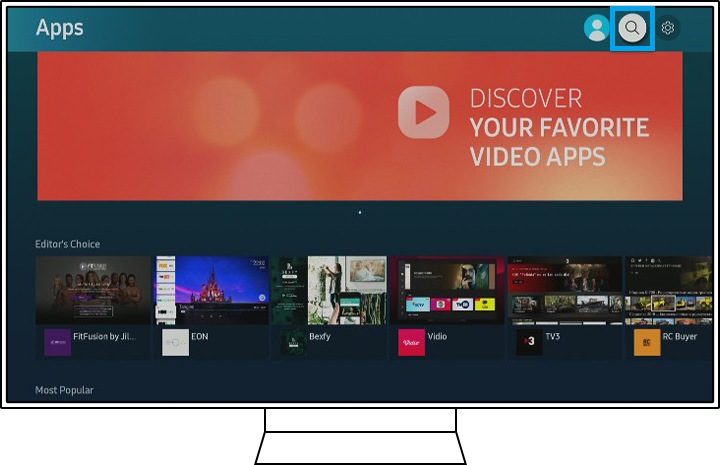
- Press the return button on your remote and select the Search icon.
- Search for the Crunchyroll app and reinstall it.
Clear app cache
If the app is freezing or not responding, try clearing its cache.
- Press the Home button and go to Settings.
- Navigate to All Settings > Support > Device Care > Manage Storage.
- Choose the Crunchyroll app, then select View Details.
- From here, you can Clear Data and Clear Cache.
Restart the TV
Turn off your Samsung Smart TV, unplug it from power, wait a few minutes, then plug it back in and turn it on.
Reset Smart Hub
If issues persist:
- Go to Settings > Support > Self Diagnosis.
- Select Reset Smart Hub.
Resetting Smart Hub removes all downloaded apps and sign-in information, so you’ll need to set them up again.
Update your TV software
- Press the Home button and go to Settings.
- Go to Support > Software Update > Update Now.
- If an update is available, select Download and Install.
Still having trouble? Reach out to Crunchyroll Support for extra help, and be sure to include your TV model, software version, and a description of the issue. With these steps, your anime adventure should be back on track in no time!